How to Add a Medical Reviewer to a Post
Step 1: Make Sure the Medical Reviewer Exists
Before you can assign a reviewer to a post, they need to be added to the system.
- In the left sidebar, hover over Posts
- Click Medical Reviewers (see Screenshot 1)

- You’ll see a list of existing reviewers (see Screenshot 2)
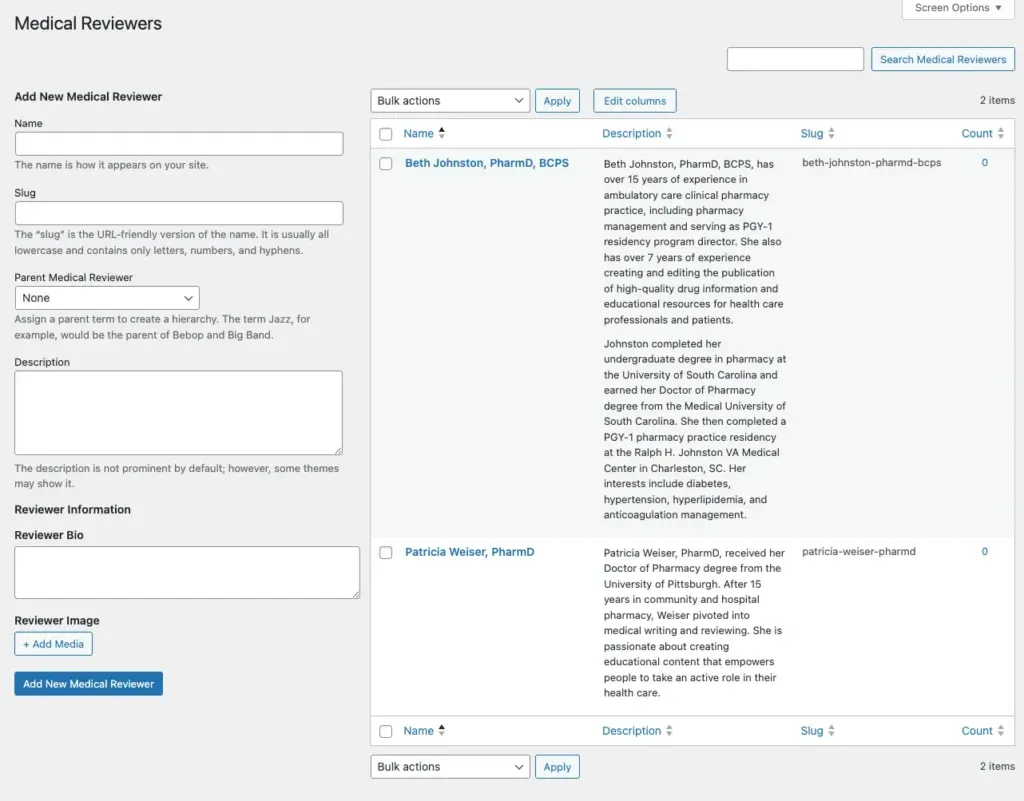
If the reviewer is already listed (like Beth Johnston or Patricia Weiser), skip to Step 2.
If you need to add a new reviewer:
- Fill out the form on the left side:
- Name: Full name and credentials (e.g., Jane Smith, MD)
- Slug: Leave blank — WordPress will auto-generate this
- Description: Professional bio / credentials summary
- Reviewer Bio: Short bio for display
- Reviewer Image: Click + Add Media to upload a headshot
- Click the blue Add New Medical Reviewer button
- The new reviewer now appears in the list on the right
Step 2: Open the Post You Want to Edit
- Go to Posts → All Posts
- Find the article and click to open it in the editor
Step 3: Assign the Medical Reviewer
- Look at the right sidebar of the post editor
- Find the Medical Reviewers panel (see Screenshot 3)
- Check the box next to the reviewer’s name you want to assign

Example: Check the box for Beth Johnston, PharmD, BCPS or Patricia Weiser, PharmD
Step 4: Save Your Changes
- Click the Update button in the top-right corner (or Publish if it’s a new post)
- Wait for the confirmation message
- View the live post to confirm the reviewer appears
Quick Reference
Table
| Task | Where to Go |
|---|---|
| Create a new reviewer | Posts → Medical Reviewers |
| Assign reviewer to a post | Post Editor → Right Sidebar → Medical Reviewers → Check the box |
| Save changes | Top-right → Update / Publish |
Tip: If a reviewer isn’t showing in the sidebar panel, make sure they were successfully added in Step 1 and that the panel isn’t collapsed (click the arrow next to “Medical Reviewers” to expand it).
Last updated: